| # Instrumenting the Linux kernel with ftrace |
| |
| In this guide, you'll learn how to: |
| |
| - Instrument your kernel code using ftrace events. |
| - Record ftrace events using `tracebox`. |
| - Interpret ftrace events into tracks in `trace_processor`. |
| - View the raw events and the interpreted tracks in the Perfetto UI. |
| |
| **Who is this guide for?** |
| |
| This guide is intended for **kernel and systems developers** who want to add |
| custom instrumentation to the Linux kernel and integrate it with Perfetto. It |
| assumes you are comfortable with: |
| |
| - Building and installing Linux kernel modules. |
| - C/C++ programming. |
| - Basic command-line usage. |
| |
| A checkout of the Perfetto source code is required for the second half of this |
| guide, where we modify Perfetto's internals. |
| |
| ## Overview |
| |
| Ftrace is a versatile tracing framework that provides a user-friendly interface |
| to the kernel's tracing capabilities, primarily via the `/sys/kernel/tracing` |
| debugfs filesystem. |
| |
| Tracepoints are pre-placed anchors at strategic locations within the kernel's |
| source code. When a tracepoint is hit during kernel execution it can trigger a |
| registered probe which is essentially a callback function. |
| |
| If no probe is attached the tracepoint has negligible performance impact. |
| |
| Perfetto deeply supports kernel tracing via ftrace. Perfetto can natively record |
| these and convert them into tracks which can be visualized using the Perfetto |
| UI. A good example of this is the scheduling and thread state tracks, which are |
| generated from sched\_\* ftrace events emitted by the scheduler. |
| |
| This guide is split into two parts: |
| |
| - **Part 1:** You will learn how to add a custom ftrace event to a kernel |
| module, record a trace containing this event, and view the raw event data in |
| the Perfetto UI. |
| - **Part 2:** For advanced users, this part covers how to add first-class |
| support for your custom event to Perfetto itself. This involves modifying the |
| Perfetto source code to parse the event and visualize it as a dedicated track |
| in the UI. |
| |
| ## Part 1: Instrumenting the Kernel and Recording Traces |
| ### Step 1: Create the Kernel Module |
| |
| For this example we are going to create a kernel module called `ticker` which |
| contains a tracepoint called `ticker_tick` which is called every second with an |
| incrementing counter as the argument. |
| |
| Create a new directory and the following files: |
| |
| ```c |
| // ticker.c |
| |
| #include <linux/kernel.h> |
| #include <linux/module.h> |
| #include <linux/timer.h> |
| #include <linux/version.h> |
| |
| #define CREATE_TRACE_POINTS |
| #include "trace/events/ticker.h" |
| |
| MODULE_LICENSE("GPL"); |
| MODULE_AUTHOR("Perfetto"); |
| MODULE_DESCRIPTION("Ticker: A kernel module emitting example static tracepoint events."); |
| MODULE_VERSION("0.1"); |
| |
| static struct timer_list my_timer; |
| static unsigned int tick_count = 0; |
| static unsigned long timer_interval_ms = 1000; |
| |
| static void my_timer_callback(struct timer_list *timer) |
| { |
| // Fire the tracepoint, incrementing the tick count every time. |
| // The function name is trace_<event_name> from the header file. |
| trace_ticker_tick(tick_count++); |
| |
| // Re-arm the timer. |
| mod_timer(&my_timer, jiffies + msecs_to_jiffies(timer_interval_ms)); |
| } |
| |
| static int __init ticker_init(void) |
| { |
| pr_info("Ticker: Initializing...\n"); |
| |
| timer_setup(&my_timer, my_timer_callback, 0); |
| mod_timer(&my_timer, jiffies + msecs_to_jiffies(timer_interval_ms)); |
| |
| pr_info("Ticker: Timer started.\n"); |
| pr_info("Ticker: View events under /sys/kernel/tracing/events/ticker/\n"); |
| |
| return 0; |
| } |
| |
| static void __exit ticker_exit(void) |
| { |
| pr_info("Ticker: Exiting...\n"); |
| |
| #if LINUX_VERSION_CODE >= KERNEL_VERSION(6, 15, 0) |
| timer_delete_sync(&my_timer); |
| #else |
| del_timer_sync(&my_timer); |
| #endif |
| |
| pr_info("Ticker: Timer stopped and module unloaded.\n"); |
| } |
| |
| module_init(ticker_init); |
| module_exit(ticker_exit); |
| ``` |
| |
| ### Step 2: Define the Tracepoint Header |
| |
| It's important that the header files lives in: `trace/events/` and not at the |
| root of the directory. |
| |
| ```h |
| // trace/events/ticker.h |
| |
| #undef TRACE_SYSTEM |
| #define TRACE_SYSTEM ticker |
| |
| #if !defined(_TRACE_TICKER_H_) || defined(TRACE_HEADER_MULTI_READ) |
| #define _TRACE_TICKER_H_ |
| |
| #include <linux/tracepoint.h> |
| |
| TRACE_EVENT(ticker_tick, |
| |
| TP_PROTO(unsigned int count), |
| |
| TP_ARGS(count), |
| |
| TP_STRUCT__entry( |
| __field(unsigned int, count) |
| ), |
| |
| TP_fast_assign( |
| __entry->count = count; |
| ), |
| |
| TP_printk("count=%u", |
| __entry->count |
| ) |
| ); |
| |
| #endif /* _TRACE_TICKER_H_ */ |
| |
| /* This part must be outside protection */ |
| #include <trace/define_trace.h> |
| ``` |
| |
| Finally add a makefile: |
| |
| ```makefile |
| # Makefile |
| |
| obj-m += ticker.o |
| ccflags-y += -I$(src) |
| KDIR ?= /lib/modules/$(shell uname -r)/build |
| PWD := $(shell pwd) |
| |
| all: |
| $(MAKE) -C $(KDIR) M=$(PWD) modules |
| |
| clean: |
| $(MAKE) -C $(KDIR) M=$(PWD) clean |
| |
| .PHONY: all clean |
| ``` |
| |
| ### Step 3: Build and Load the Module |
| |
| Your directory structure should look like this: |
| |
| ``` |
| . |
| ├── Makefile |
| ├── ticker.c |
| └── trace |
| └── events |
| └── ticker.h |
| ``` |
| |
| Make sure your kernel headers are installed and run `make` to build the kernel |
| module. |
| |
| You can now install the kernel module with: |
| |
| ```bash |
| sudo insmod ticker.ko |
| ``` |
| |
| Note: You can always uninstall the kernel module with `rmmod`. |
| |
| ```bash |
| sudo rmmod ticker |
| ``` |
| |
| ### Step 4: Verify the Tracepoint |
| |
| In order to check that ftrace has picked up the new tracepoint, list the |
| contents of the event directory. If the dir exists you should be good to go. |
| |
| ```bash |
| cd /sys/kernel/tracing/events/ticker/ticker_tick |
| ``` |
| |
| First enable our ticker event and tracing in general: |
| |
| ```bash |
| echo 1 | sudo tee /sys/kernel/tracing/events/ticker/ticker_tick/enable |
| echo 1 | sudo tee /sys/kernel/tracing/tracing_on |
| ``` |
| |
| Finally, listen to the stream of ftrace events with: |
| |
| ```bash |
| sudo echo /sys/kernel/tracing/trace_pipe |
| ``` |
| |
| You should see the ticker events being emitted roughly every and the count |
| argument incrementing every tick. |
| |
| ``` |
| # cat /sys/kernel/tracing/trace_pipe |
| <idle>-0 [011] ..s1. 850584.176058: ticker_tick: count=38 |
| <idle>-0 [011] ..s1. 850585.200042: ticker_tick: count=39 |
| <...>-2904431 [015] ..s1. 850586.224031: ticker_tick: count=40 |
| puppet-2904431 [015] ..s.. 850587.248080: ticker_tick: count=41 |
| <idle>-0 [011] ..s1. 850588.272137: ticker_tick: count=42 |
| <idle>-0 [011] ..s1. 850589.296040: ticker_tick: count=43 |
| <idle>-0 [011] ..s1. 850590.320049: ticker_tick: count=44 |
| <idle>-0 [011] ..s1. 850591.344048: ticker_tick: count=45 |
| <idle>-0 [011] ..s1. 850592.372038: ticker_tick: count=46 |
| <idle>-0 [011] ..s1. 850593.392033: ticker_tick: count=47 |
| <idle>-0 [003] ..s1. 850594.416049: ticker_tick: count=48 |
| <idle>-0 [011] ..s1. 850595.440054: ticker_tick: count=49 |
| ``` |
| |
| See the following links for more detail on tracepoints and kernel tracing in |
| general. |
| |
| - https://docs.kernel.org/trace/tracepoints.html |
| - https://lwn.net/Articles/379903/ |
| - https://lwn.net/Articles/381064/ |
| - https://lwn.net/Articles/383362/ |
| |
| ### Step 5: Record a Trace with `tracebox` |
| |
| In order to record our ticker events, we are going to record a system trace |
| using `tracebox`. First we need to create a recording config file that's |
| configured to do so. |
| |
| ``` |
| # ticker.cfg |
| |
| buffers { |
| size_kb: 20480 |
| fill_policy: DISCARD |
| } |
| |
| # Record our ticker events only. |
| data_sources { |
| config { |
| name: "linux.ftrace" |
| target_buffer: 0 |
| ftrace_config { |
| ftrace_events: "ticker/ticker_tick" |
| } |
| } |
| } |
| |
| # 10s trace, but can be stopped prematurely. |
| duration_ms: 10000 |
| ``` |
| |
| See the [system tracing page](/docs/getting-started/system-tracing.md) in order |
| to get set up with tracebox. For this example we are going to record a trace |
| from the command line using the config file we just created. |
| |
| ```bash |
| tracebox -c ticker.cfg --txt -o ticker.pftrace |
| ``` |
| |
| Note: Tracebox will take care of enabling tracing and our ticker events (as we |
| did above manually). |
| |
| This will create a perfetto trace at `ticker.pftrace` in the current directory. |
| You should be able to view this trace immediately. |
| |
| ### Step 6: View the Trace |
| |
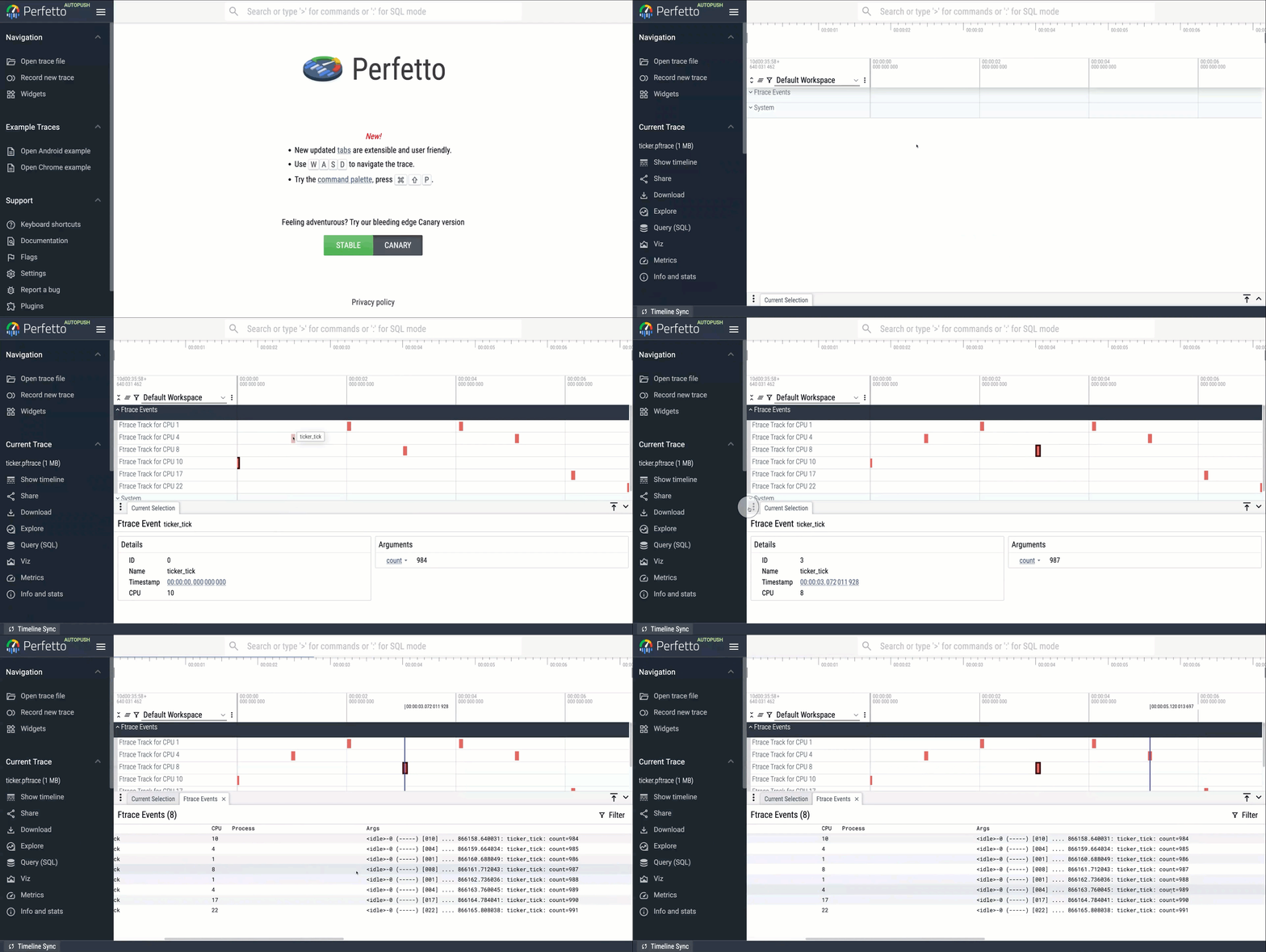
| We can now explore the recorded trace in the Perfetto UI. Navigate to |
| https://ui.perfetto.dev and drag-n-drop your file into the window (or press |
| Ctrl/Cmd+O to bring up the open file dialog). You can explore the raw ftrace |
| events by opening the 'Ftrace Events' group and clicking the instant events |
| plotted on the tracks. |
| |
|  |
| |
| Alternatively, you can explore the trace contents issuing SQL queries through |
| the [Trace Processor](/docs/analysis/getting-started.md). |
| |
| ## Part 2: Integrating Custom Events with Perfetto |
| ### Step 1: Add the Event to Perfetto |
| |
| Raw events are all well and good, but it would be handy if we could convert |
| these into tracks. In this tutorial we are going to create a counter track |
| containing the values of our event's `count` argument. |
| |
| Before we can add the logic into trace processor to convert these events into |
| slice and counter tracks, we first need to teach `traced_probes` the format of |
| our new event so that it can store the event and its arguments properly in the |
| trace proto. |
| |
| First we need to clone the perfetto repository as we are going to make changes |
| to it. Do this now if you haven't done so already: |
| |
| ```bash |
| git clone https://github.com/google/perfetto.git |
| ``` |
| |
| Now, find the format of our event in the tracing file system: |
| |
| ```bash |
| cat /sys/kernel/tracing/events/ticker/ticker_tick/format |
| ``` |
| |
| It should look something like this: |
| |
| ``` |
| name: ticker_tick |
| ID: 1783 |
| format: |
| field:unsigned short common_type; offset:0; size:2; signed:0; |
| field:unsigned char common_flags; offset:2; size:1; signed:0; |
| field:unsigned char common_preempt_count; offset:3; size:1; signed:0; |
| field:int common_pid; offset:4; size:4; signed:1; |
| |
| field:unsigned int count; offset:8; size:4; signed:0; |
| |
| print fmt: "count=%u", REC->count |
| ``` |
| |
| Copy and paste the contents of this file into a new file file called |
| `<perfetto>/src/traced/probes/ftrace/test/data/synthetic/events/ticker/ticker_tick/format`, |
| and also add the event name `ticker/ticker_tick` to |
| `<perfetto>/src/tools/ftrace_proto_gen/event_list`. |
| |
| Then run the following command to update the proto files. |
| |
| ```bash |
| tools/run_ftrace_proto_gen |
| ``` |
| |
| This will update `protos/perfetto/trace/ftrace/ftrace_event.proto` and |
| `protos/perfetto/trace/ftrace/ticker.proto`. |
| |
| Now run: |
| |
| ```bash |
| tools/gen_all out/YOUR_BUILD_DIRECTORY |
| ``` |
| |
| This will update `src/traced/probes/ftrace/event_info.cc` and |
| `protos/perfetto/trace/perfetto_trace.proto`. |
| |
| ### Step 2: Parse the Event in Trace Processor |
| |
| Now we can add some special handling to `ftrace_parser.cc` to process our events |
| and turn them into a counter track. Find the large switch-case in the |
| `ParseFtraceEvent` function and add a new case for our new ftrace event type. In |
| this example I have added a new function `FtraceParser::ParseTickerEvent` to |
| parse the event and push values to a new counter track. |
| |
| ```c++ |
| // ftrace_parser.cc |
| static constexpr auto kTickerCountBlueprint = tracks::CounterBlueprint( |
| "ticker", |
| tracks::UnknownUnitBlueprint(), |
| tracks::DimensionBlueprints(), |
| tracks::StaticNameBlueprint("Ticker")); |
| |
| // ~~ snip ~~ |
| |
| case FtraceEvent::kTickerEventFieldNumber: { |
| ParseTickerEvent(cpu, ts, fld_bytes); |
| break; |
| } |
| |
| // ~~ snip ~~ |
| |
| void FtraceParser::ParseTickerEvent(uint32_t cpu, |
| int64_t timestamp, |
| protozero::ConstBytes data) { |
| protos::pbzero::TickerEventFtraceEvent::Decoder ticker_event(data); |
| |
| PERFETTO_LOG("Parsing ticker event: %" PRId64 ", %u, %d", |
| timestamp, |
| cpu, |
| ticker_event.count()); |
| |
| // Push the global counter. |
| TrackId track = context_->track_tracker->InternTrack(kTickerCountBlueprint); |
| context_->event_tracker->PushCounter( |
| timestamp, static_cast<double>(ticker_event.count()), track); |
| } |
| ``` |
| |
| Note: You'll also need to add the `ParseTickerEvent` to the header file |
| ftrace\_parser.h |
| |
| Build perfetto and run the trace again. You should now see a ticker track in the |
| tracks table and ticker counter samples in the counter table. |
| |
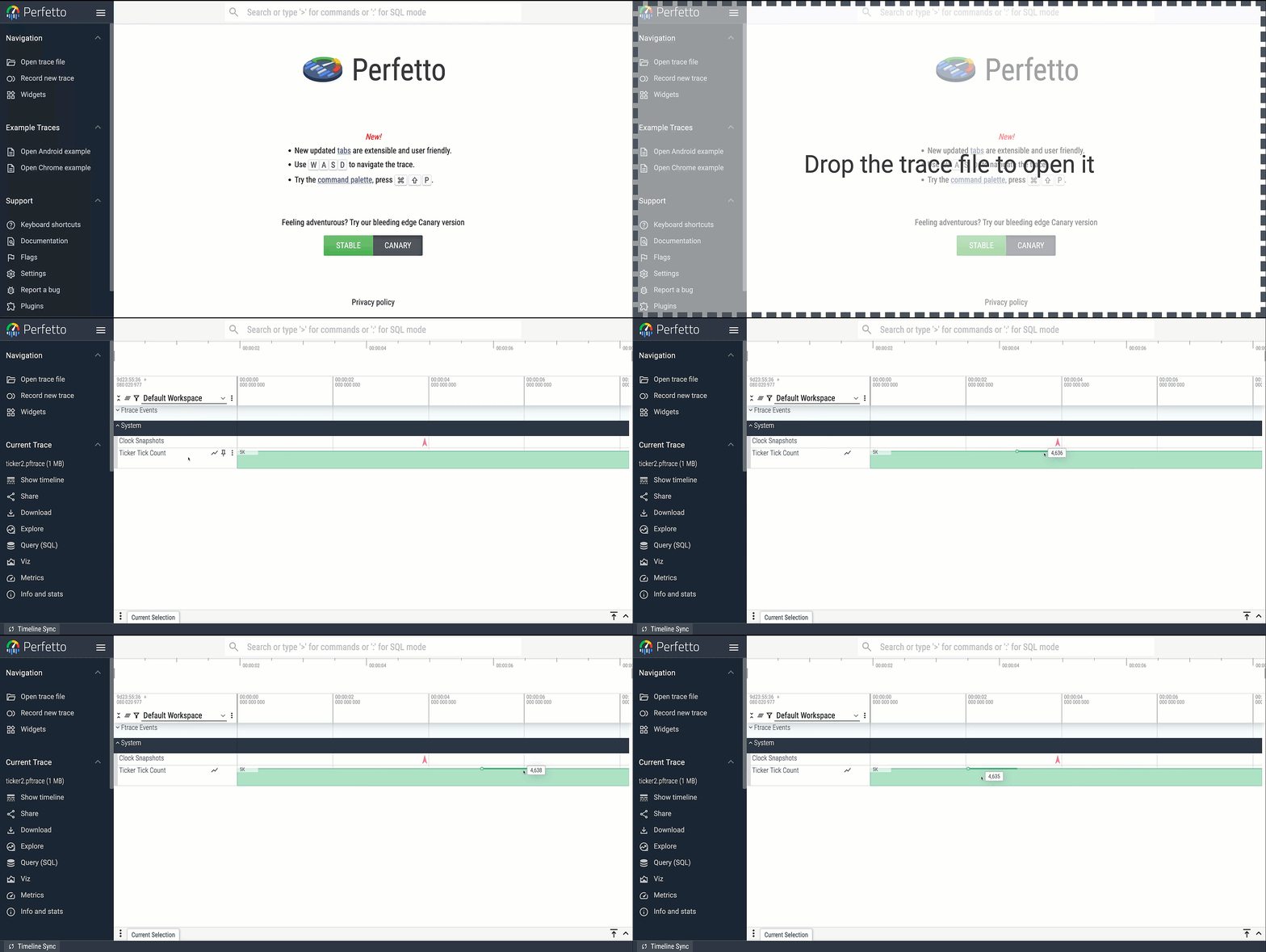
| ### Step 3: Visualize the Track in the UI |
| |
| In order to acutally see this track in the UI we need to tell the UI about it by |
| modifying the file |
| `<perfetto>/ui/src/plugins/dev.perfetto.TraceProcessorTrack/counter_tracks.ts` |
| and adding a new clause for the `ticker` type counter tracks. We'll put it in |
| the `SYSTEM` top-level-group for now. |
| |
| ```ts |
| // counter_tracks.ts |
| ~~ snip ~~ |
| { |
| type: 'ticker', |
| topLevelGroup: 'SYSTEM', |
| group: undefined, |
| }, |
| ~~ snip ~~ |
| ``` |
| |
| Rebuild everything, including the UI and re-record the trace (note this step is |
| crucial, as the old trace won't have our trace event's information stored |
| correctly). Finally, load the new trace in the UI and you should see our new |
| track. |
| |
|  |
| |
| ## Next Steps |
| |
| - **Learn more about collecting system traces:** The |
| [Collecting system traces](/docs/getting-started/system-tracing.md) guide |
| provides more information about how to collect system traces with Perfetto. |
| - **Explore other data sources:** |
| - [Scheduling events](/docs/data-sources/cpu-scheduling.md) |
| - [System calls](/docs/data-sources/syscalls.md) |
| - [Frequency scaling](/docs/data-sources/cpu-freq.md) |
